PurrView Dashboard Tutorial
Use this guide to understand what each dashboard area means and what to do after every run.
Start here if you need orientation before using the link-fixing tutorial.
Start here
Review Recent runs, then use Found on Task List and Issue Details to choose the next fix.
What the overview cards mean

Crawled pages
These are the internal pages PurrView successfully crawled in the selected run. It is the fastest way to understand the run’s page-level coverage.
External links
This count shows the external destinations PurrView checked in the selected run. It helps you judge how much outbound review work may be in the queue.
Ignored links
These are links you intentionally removed from your active queue. Use View list to review them when you need to confirm what is being hidden from day-to-day triage.
Read Recent runs first

What this section tells you
Recent runs is where you decide what kind of session you are about to have. Each run shows its status plus internal and external counts for crawled or accessible items, images/files, Bad, Unsafe, Redirects, and Blocked.
Start here before you filter anything else. It gives you the quickest view of where the largest bucket of work lives.
When Web Risk is still processing
If the dashboard says Web Risk review is still processing for this run, the HTTP findings can still be available while Unsafe review finishes in the background.
That means you can still work from the rest of the queue instead of waiting on the run to become fully complete.
Work from Found on Task List and Issue Details
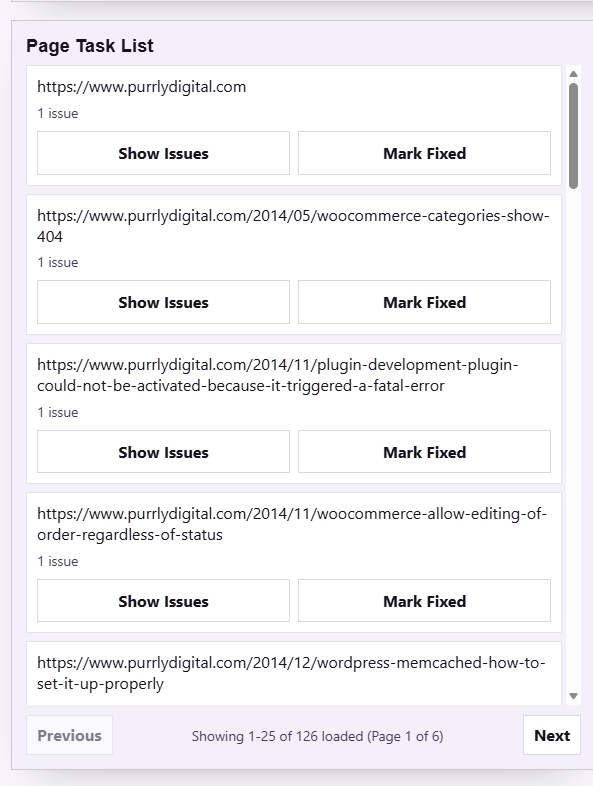
Found on Task List
This is the page-level queue. It groups work by source page so you can see which URLs carry the most issues and decide where to work next.
Use Show Issues when you want to pivot from the page list straight into the related findings, and use Mark Fixed once the page update is live.
Issue Details
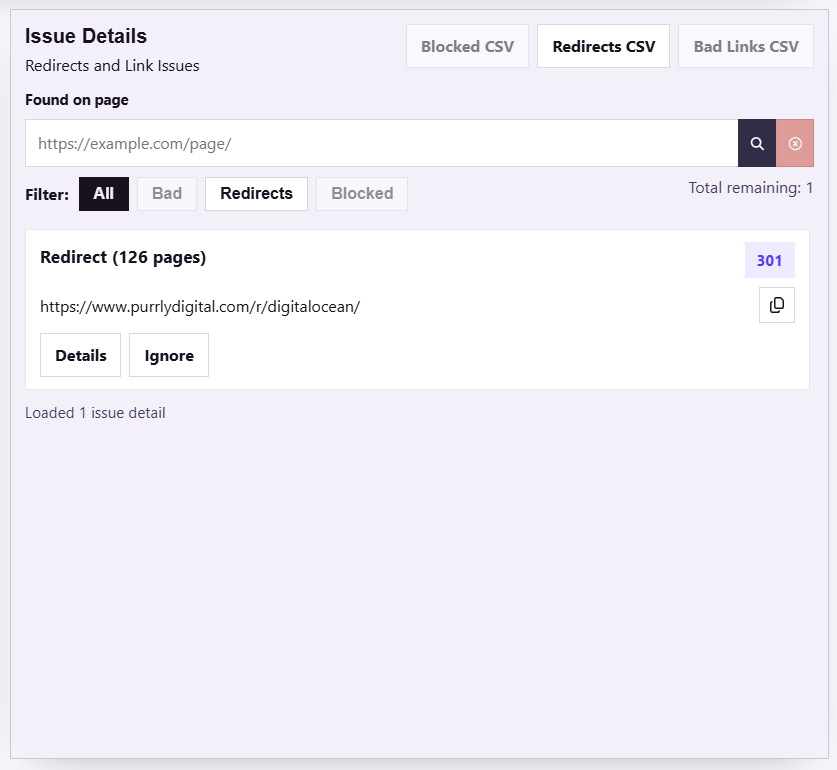
This is the finding-level working list. Filter by Bad, Unsafe, Redirects, or Blocked, then use Found on page when you want to narrow the queue to a specific URL.
Issue rows show how many pages a problem touches. That makes it easier to spot repeated issues before you spend time on one-off cleanup.
Two useful support areas
Trend Snapshot helps you judge how the queue is changing across runs. Export Reports lets you pull Blocked CSV, Redirects CSV, Unsafe CSV, and Bad Links CSV when you need to share work outside the dashboard.
Issue types
Triage tip
If the same issue appears across many pages, check shared layout areas first: navigation, footer links, reusable blocks, and other common templates.
Bad
These are links or resources that are not resolving correctly. A missing page is the most common example, but the exact response can vary.
Unsafe
These findings come from Google Web Risk review. Open Details to review Threat types, Web Risk state, and Matched URL before you remove, replace, or escalate the destination.
Redirects
These URLs still work, but they take extra hops. Prioritize the ones attached to navigation, high-traffic pages, and older destination changes that now create unnecessary friction.
Blocked
These usually mean the destination is private, rate-limited, or otherwise inaccessible to the validator. Confirm whether the block is expected before you decide to ignore or escalate it.
What the buttons and details panel do
Show Issues
Jump from a page in Found on Task List to the findings connected to that URL.
Details
Open the full finding record so you can review source pages, status context, and supporting metadata.
Ignore
Hide an item that is intentionally outside your active queue, such as a private destination or an expected exception.
Mark Fixed
Use this after the source page change is live so the dashboard reflects work you have already completed.
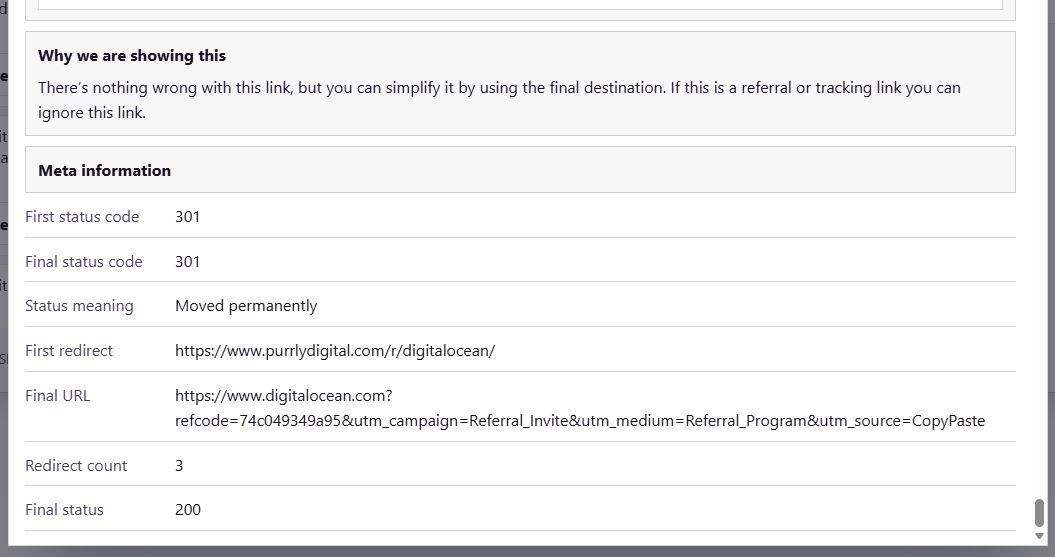
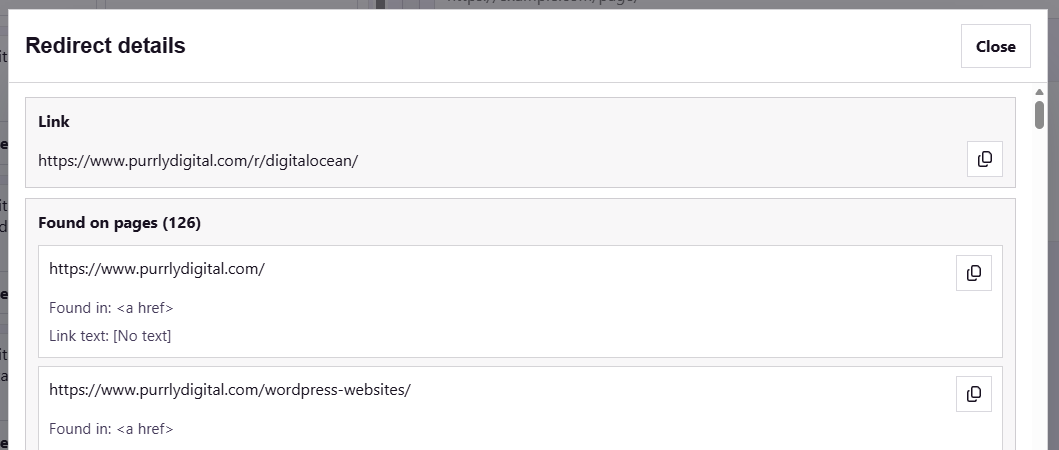
The top of Details shows the selected URL and the Found on pages (N) list so you can see where the issue appears and what text or element type is attached to it.
The lower portion explains why the finding is being shown and includes the metadata that matters for that issue type, including Web Risk fields for unsafe findings.